
Sign Up





Boomdizzle MyConnect Studio Training Guide
Release | Alpha 1
| BOOMDIZZLE MYCONNECT STUDIO - Getting started guide | |
| BEFORE YOU START | Hardware Requirements and Software |
| STEP 1 | Lobby – Chat, Start a Project, Invite a User |
| STEP 2 | MyConnect Studio – Basic Setup (Audio/Video) |
| STEP 3 | Create Music – Adding to sequencer, navigating studio |
| STEP 4 | Recording Vocals – switch between users, copy/pasting, looping |
| STEP 5 | Saving and Exporting your song |
Please email admin@boomdizzle.com if you need technical assistance or have any questions.
Before You Start
| - USB Headset with MIC for recording |
| - Internet connection – minimum 2.5Mbps download 1 Mbps upload Check at www.speedtest.net |
| - Windows (7 or XP) |
|
| - Mac OSX |
|
Lobby
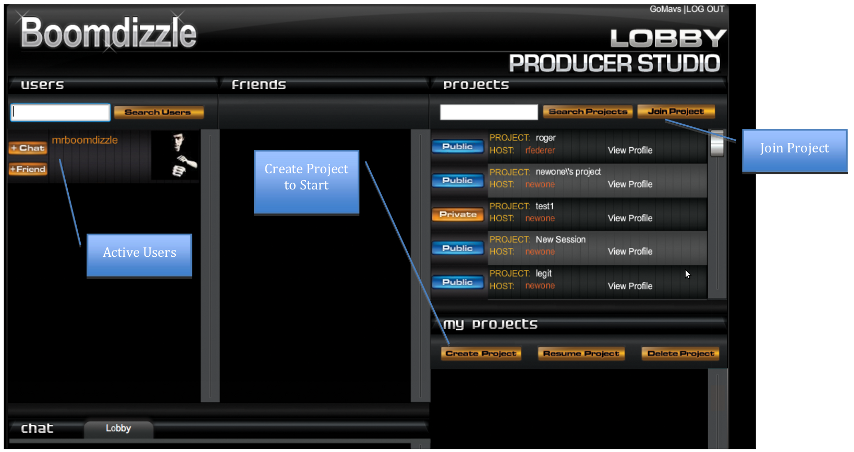
| - Active Users |
|
| - Lobby |
|
Studio - First Time Setup
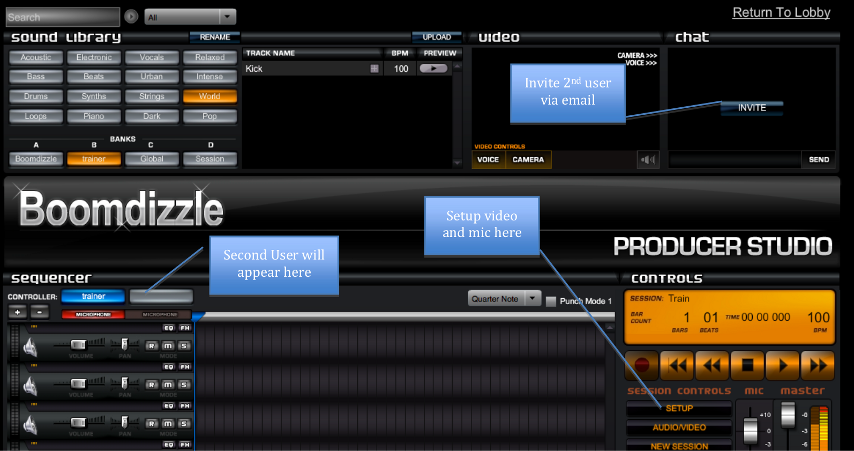
| - Click on YES for Adobe Flash permission, active X plugin |
| - Click on Audio/Video |
|
| - Invite User |
|
| - Second User Joins |
|
Create Music
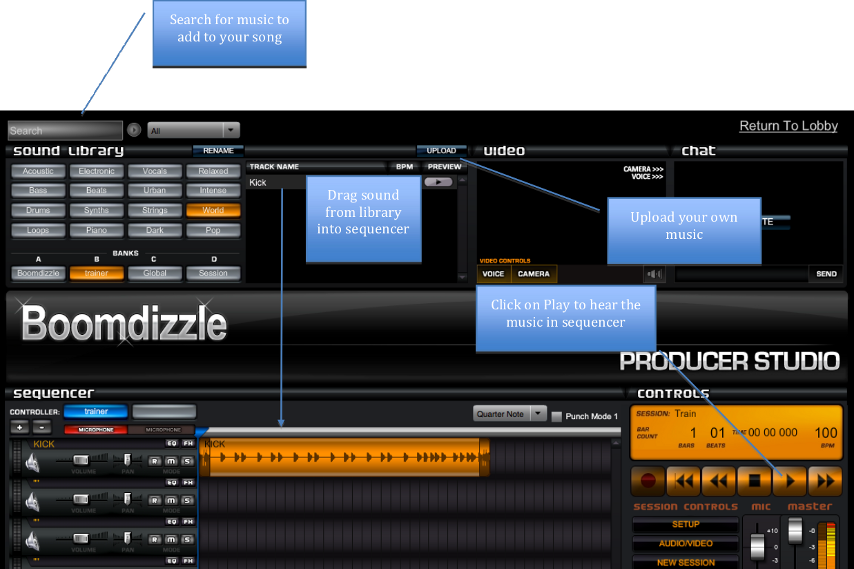
| - Search or Upload music content |
|
| - Drag Music into Sequencer |
|
| - Repeat to add more tracks into the sequencer (up to 12) |
Record Vocals
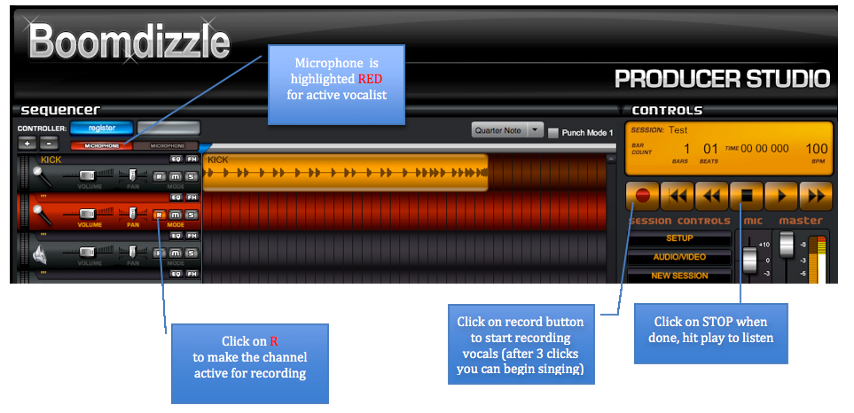
| - Select who the vocalists are |
|
| - Activate Channel for recording |
|
| - Click on the RED record button, and sing! |
|
| - Hit play to listen to your recording. |
Saving mixdown
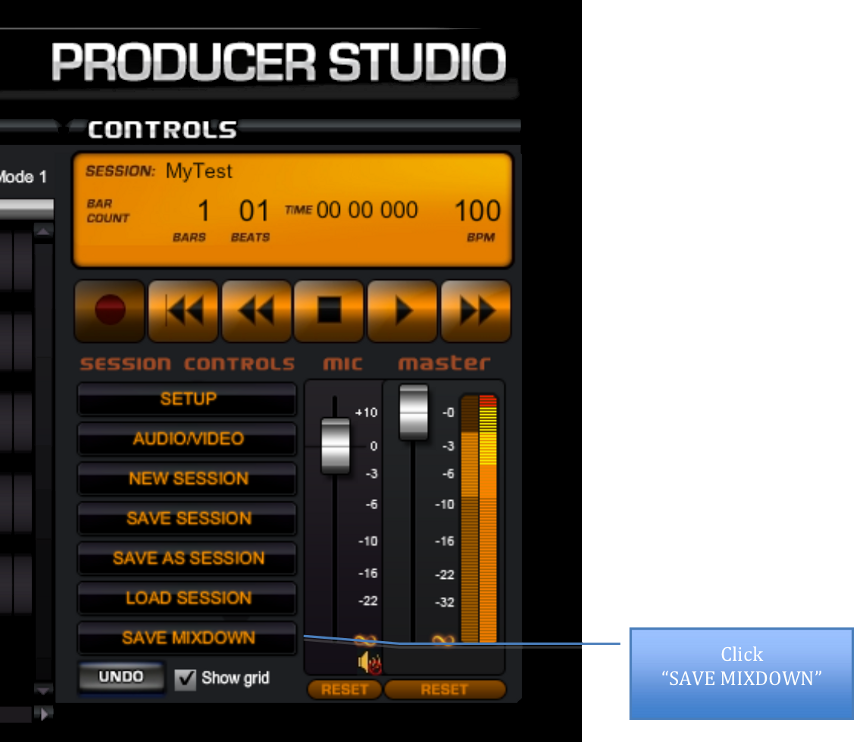
| Save Mixdown |
| - Click on Save Mixdown button |
| - Type in name of song |
| - Boomdizzle will create a .wav file |
| - Select location on your computer to save song |
| - Congratulations, you have made yourself a song! |
- The Boomdizzle MyConnect Studio allows users to edit the WAV forms in the sequencer. The following are a list of shortcuts.
| Shortcut | Mac | PC |
| Copy | Shift (highlight till blue) control c | Shift (highlight till blue) control c |
| Paste | control v | control v |
| Start / Stop | Spacebar | Spacebar |
| Loop | Shift (highlight till blue) control l | Shift (highlight till blue) control l |


